TD Pilot – Trials and Loans Support
We’re here to help
We are here to help you during your equipment trial to make it as smooth as possible.
Please get in touch to ensure the equipment is doing what you need it to do.

TD Pilot
STEP 1 – Turn the device on
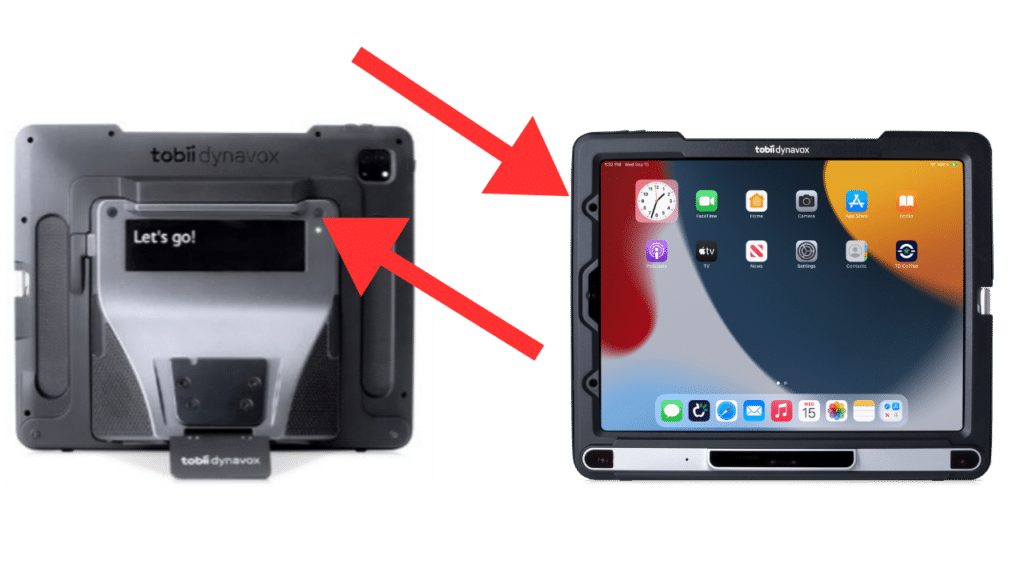
Press the power button on the back right of the TD Pilot to turn on the eye tracker. Press the power button on the left side of the TD Pilot to turn on the iPad.
STEP 2 – Mount & Position
Make sure the user is positioned comfortably.
Mounting
- Adjust screen height with the included mount.
- Adjust seating if possible.
- Use a height-adjustable table if required.
Positioning device user
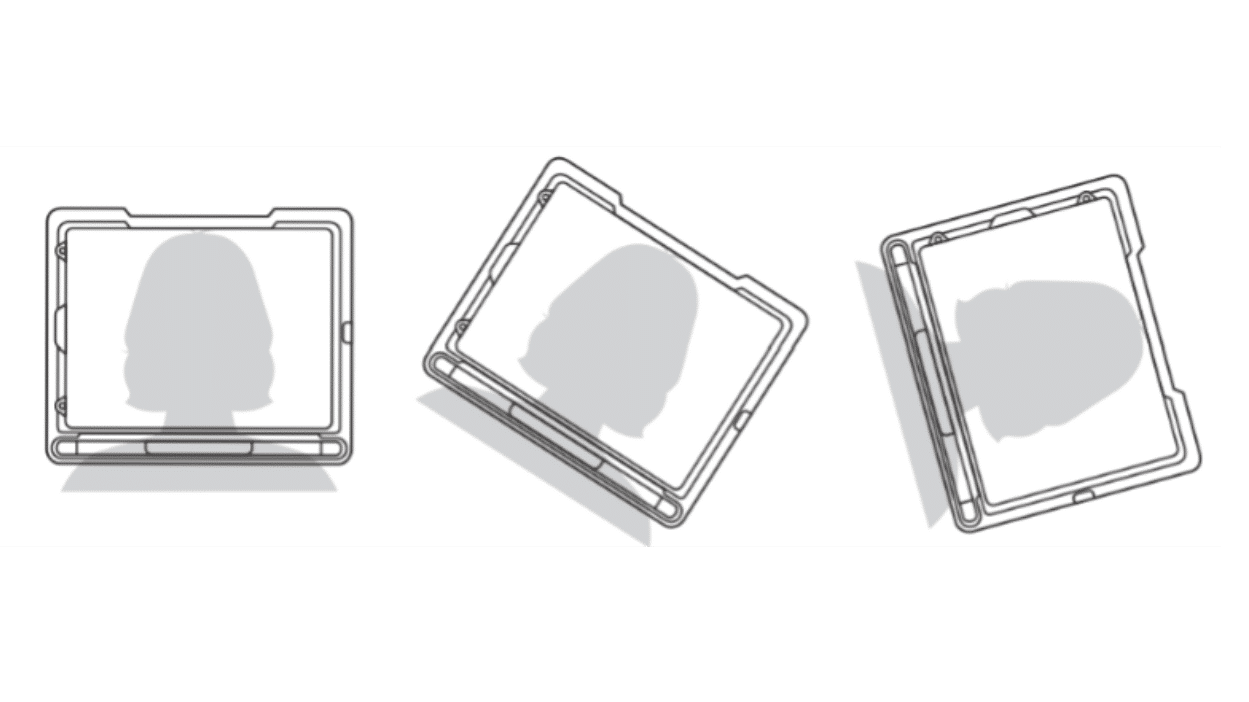
- Adjust the eye tracker/screen angle to suit the user.
- Position at a distance of 45-70 cm away from the screen.
- Make sure the eye tracker is level with or just below the user’s eyes.
- If the user’s head is normally tilted, tilt the screen to match.
- If the user is usually in a reclined position, then a specialised mount may be required to position the screen.

Track Status
- Track status can be accessed by tapping the TD Co Pilot app.
- The two white dots show where the user’s eyes are positioned. These must be in the middle of the black area.
- The white arrow in the green area shows the distance from the screen. Move the device closer or further away until the arrow is in the green area and the eyes are in a central position.

STEP 3 – Calibrate
Calibrate the user’s eyes within Eye Tracking Settings.
- Tap TD Co Pilot and check the track status positioning.
- Select settings to choose which eye/eyes to track and the number of calibration points.
- When ready to calibrate, select calibrate. Follow the on-screen instructions.
- Improve points if needed.
The user does not need to calibrate every time if the position is right. There are also different options for accessing calibration and calibration settings within the communication app being used.
Please review the resources below for the software being used, or contact your clinical team member.
Information
To Get Started
Choose a communication app
TD Snap

TD Talk

Clinical & Therapy Support
Our clinical team of Speech Pathologists and Occupational Therapists can support you to set goals for your trial, learn to use the equipment, personalise the software for your needs, and evaluate your trial.
Technical Support
Our Technical Support and Repairs team is here for your technical issues or troubleshooting.
All Tobii Dynavox trial devices have TeamViewer installed, so we can log into the device remotely.* Whenever possible, please book a time in advance with our technical support team by:
Phone: 08 7120 6002
Email: au.support@tobiidynavox.com
*Your device must be switched on and connected to the internet via wifi or mobile hotspot.
Administrative Support
Contact us at loans.au@tobiidynavox.com for support with administration regarding your equipment trial, such as adjusting trial dates or arranging the return of trial equipment.
Online Supports & Resources
We have a range of support information on our website for your equipment trial. Get started by checking out our Getting Ready for Your Communication Device Trial page.
Call us for technical support and consultation 08 7120 6002